

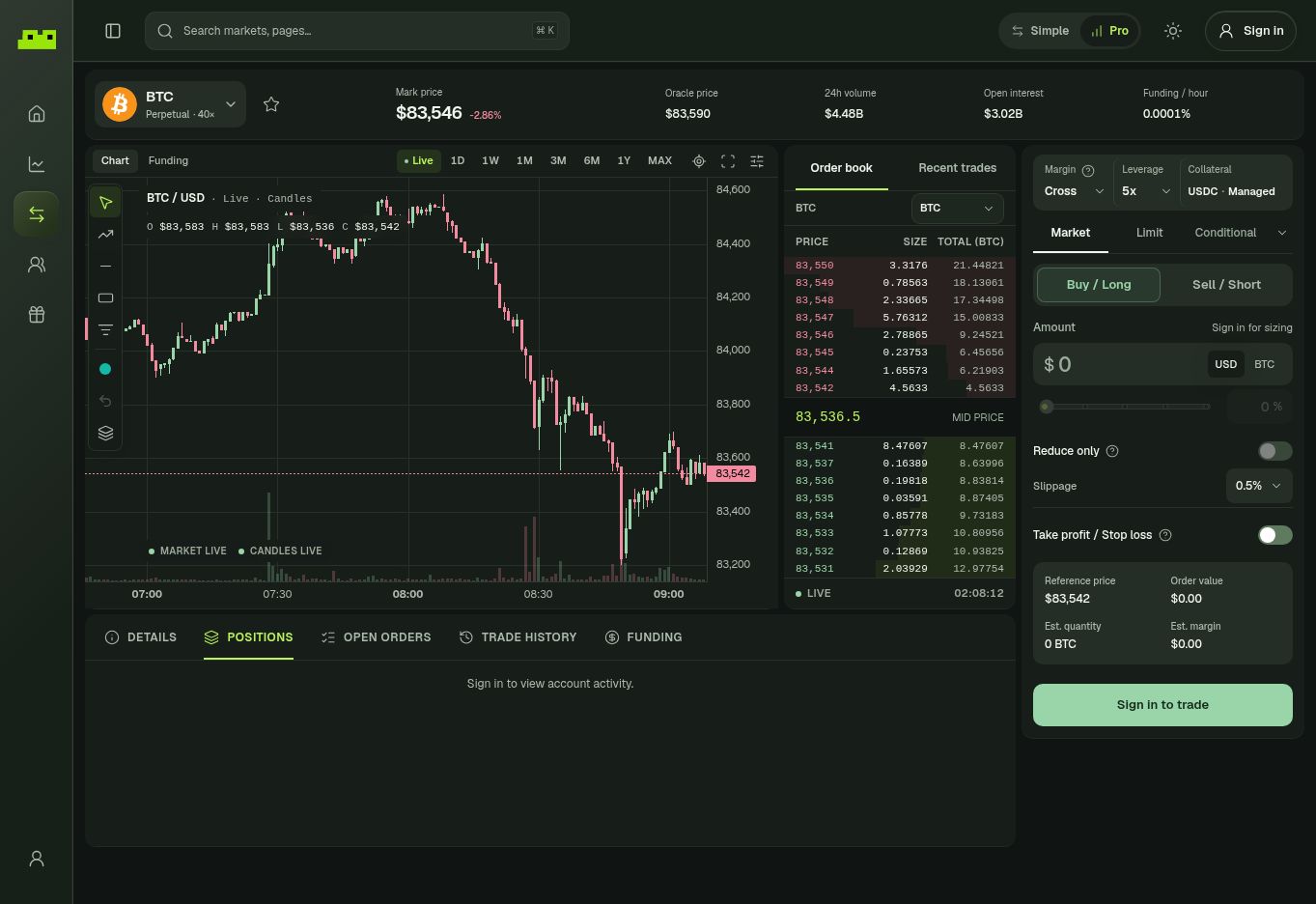
Illustrative BTC Pro trading screen. Market data changes continuously.
Market data at the top
The market header can show:- Mark price
- Oracle price
- 24h volume
- Open interest
- Funding rate
Chart
The Pro chart uses candlesticks and gives you more control over the view. Use the chart to understand price structure and recent movement, not as a substitute for position sizing or risk controls.Order book and recent trades
The Order book shows current resting buy and sell liquidity around the market. Recent trades shows transactions that have just executed. Together, they give you a closer view of short-term market activity than the simplified chart alone.Trade panel
The order panel lets you control:- margin mode
- leverage
- collateral
- order type
- long or short direction
- amount
- reduce-only behavior
- slippage
- take profit / stop loss
Market, Limit, and Conditional
Pro mode supports three main order categories:- Market for immediate execution against available liquidity
- Limit when you want to specify the price you are willing to trade at
- Conditional when you want the order to become active after a trigger condition is reached
Reduce only
Turn on Reduce only when the order should only decrease or close an existing position. A reduce-only order is useful when you want to exit risk without accidentally opening a new position in the opposite direction.Take profit / Stop loss
The TP/SL control lets you plan an exit at the same time as the trade rather than waiting until the position is already open. See Take Profit & Stop Loss before using it for the first time.Account activity
The tabs below the chart keep the trade screen connected to your account:- Details
- Positions
- Open orders
- Trade history
- Funding